1. Open Outlook and Navigate to Account Settings:
a. Open Outlook --> File (tab) --> Account Settings
b. On the Account Settings (dialog window), under Email (tab), select your email address/account. Click Change (button)
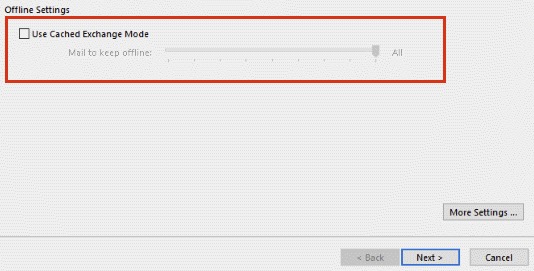
2. On the Exchange Account Settings (dialog/pop-up), the Cached Exchange Mode section is likely on the main tab (w/o having to click More Settings)
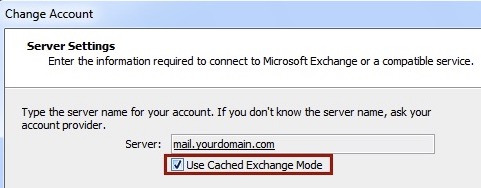
a. Use Cached Exchange Mode: <checked>
b. Mail to keep offline: All (slider dragged from 3 days to All)
c. Click Next (button)
Newer Screen:
Older Screen:
3. On the next screen click Finish (button)
4. Restart Outlook
previous page
|